Some ideas just don’t fit in a chat box.
Over the last few months, I’ve found myself asking AI agents to tackle more complex work, take on longer tasks, and work more abstractly with my files, code, and ideas. Most of the time, the format of the chat works fine, especially when I can augment the chat with information from my environment, like which files I have open, my selected text, and any recent changes.
Some topics, however, are hard to work with through chat alone. It might be something inherently visual, like describing an adjustment to a particular part of a design, or else complex and abstract, like a process or workflow. In cases like these, a drawing or diagram would be so much easier.
So we gave LLMs a way to draw for you.
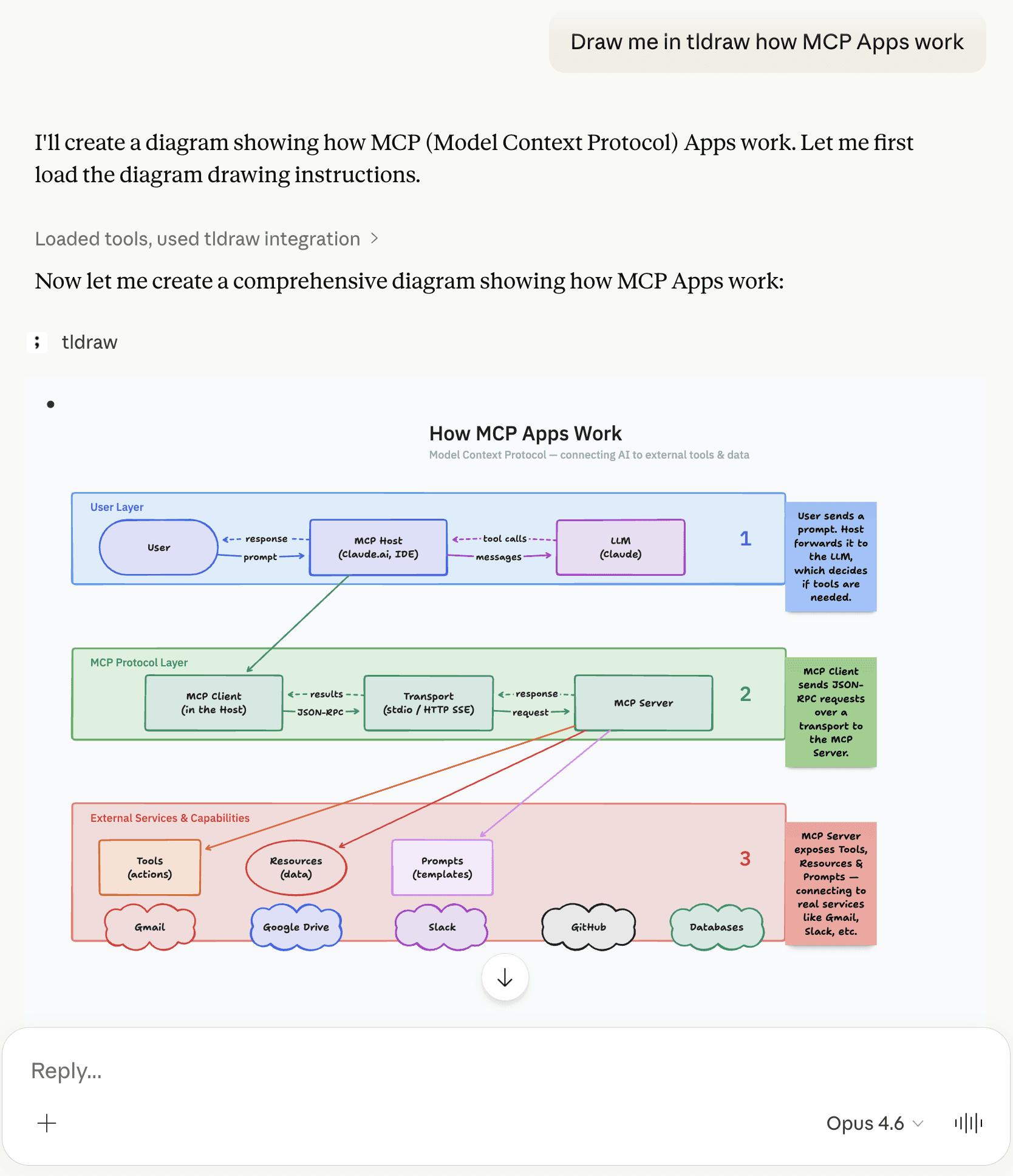
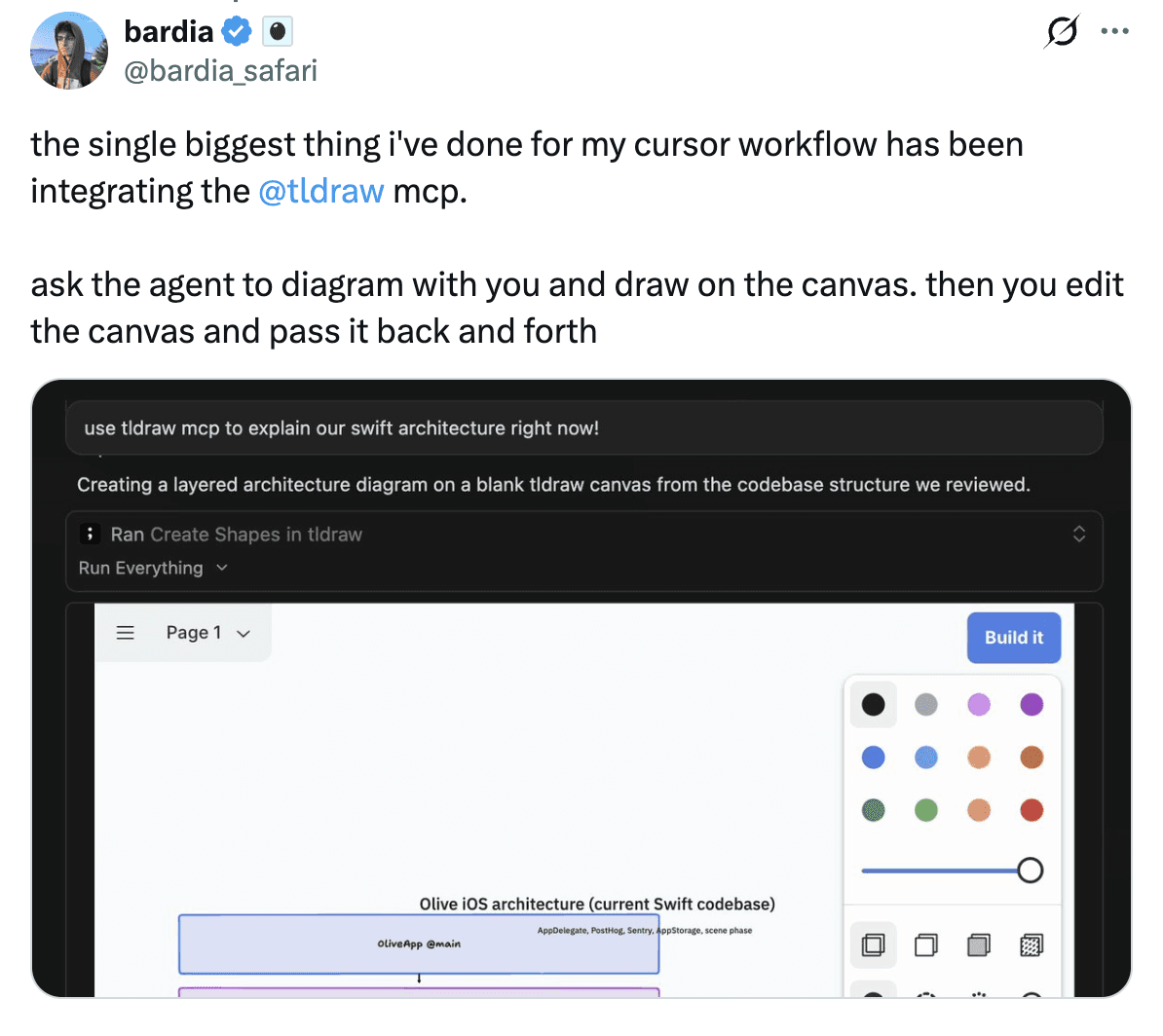
With tldraw’s new MCP App, we’ve put a full tldraw canvas inside your conversations. Your agent can draw, diagram, and wireframe. You can edit the canvas too—and the agent can see your changes.
It's live now in Claude and Cursor.
Try it
To use the tldraw MCP app in Cursor, open the plugin marketplace (cmd shift P, search Marketplace), search for tldraw, and click Add to Cursor. Restart Cursor, open an agent, and ask it to draw something.
To use the tldraw MCP app in Claude (both the web or desktop app), click on Settings, then Connectors, then Browse Connectors. Search for tldraw and click Connect. Open a chat and ask it to draw something.
For anything else, try adding this to your settings:
Once you've installed the tldraw MCP app, you can put it to work: diagram your codebase architecture, walk through a PR, or sketch out a system design together.
What it can do
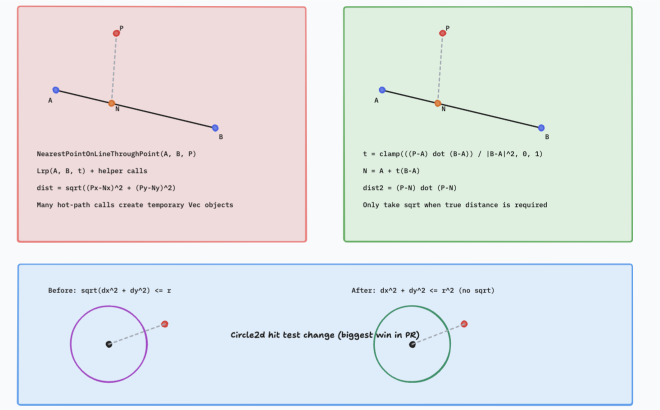
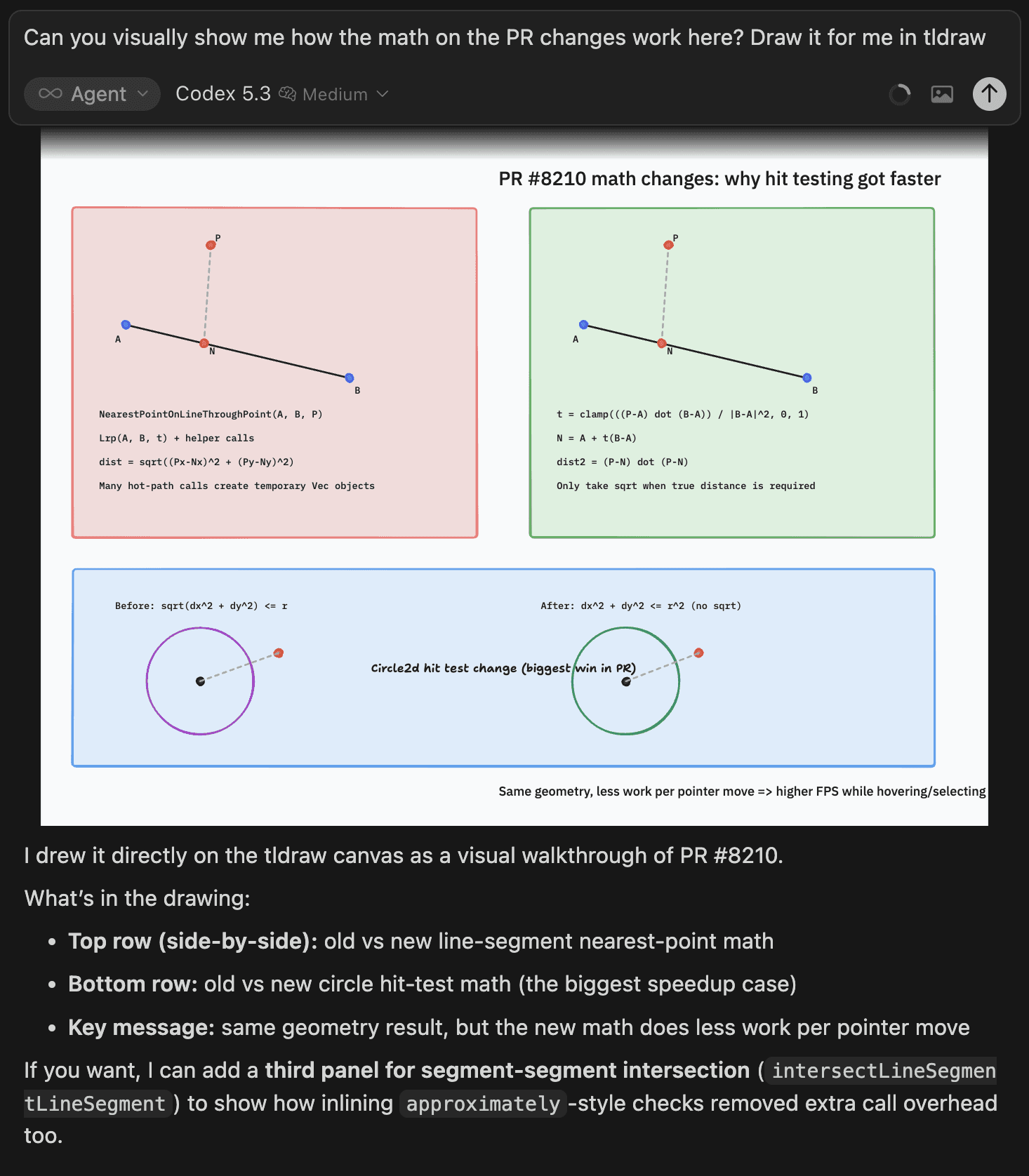
Last week, while working on an issue that would change how tldraw calculates curves, I asked the Cursor agent to show me how the change worked—visually. Cursor spun up a tldraw to show me, with the old approach on the left, the new approach on the right, and annotations to highlight the key optimization. I had the idea in a moment and was able to give the model much better steering as we continued.
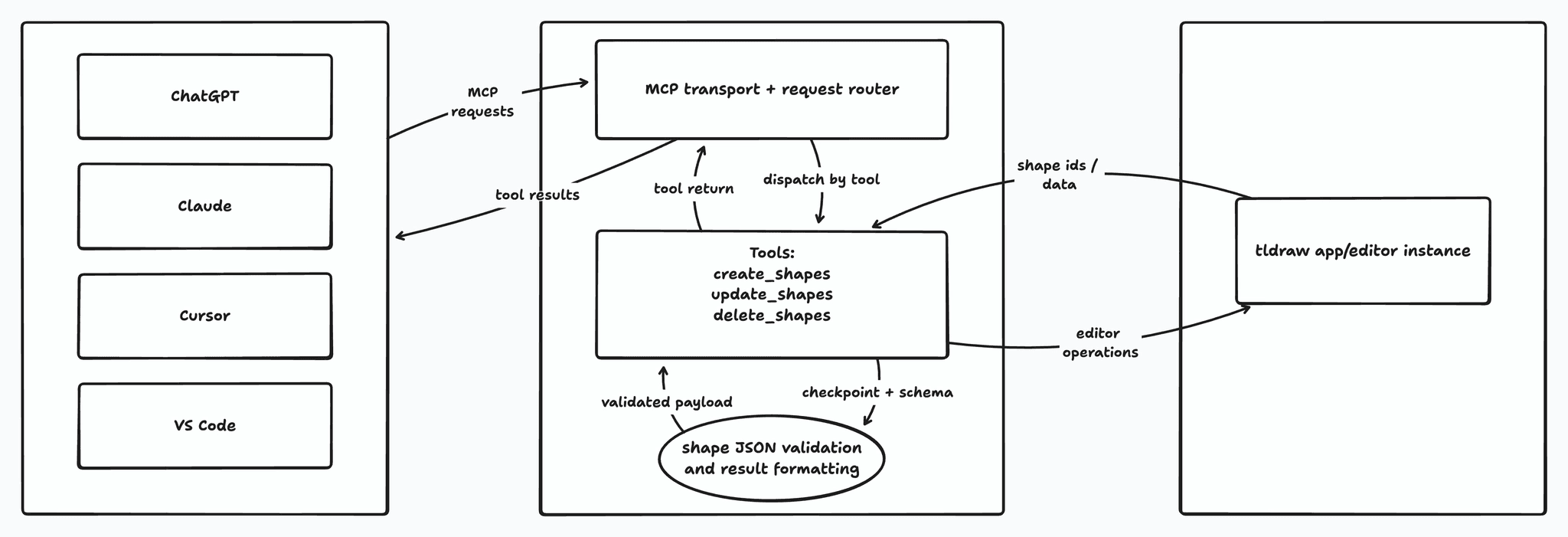
This one’s a little recursive: I needed to document the MCP App itself and wanted to show how it worked, so I asked the agent to show me a diagram. Cursor's agent spun up the MCP app and produced a full layout of the interactions between clients, the transport layer, the tool dispatch system, and the tldraw editor instance. After some tweaks for visual design, the diagram went right into our docs.
Going further
Building tldraw's MCP app taught us a lot about the protocol and the quirks of each platform that implements it. In a future article, we'll share more about what we learned, the issues we faced, and where we want to go next.
If you're using the tldraw MCP app, let us know your thoughts! You can connect with the team on Discord, post at us on Twitter/X, or learn more about the tldraw SDK at tldraw.dev.
" width="82.99999842902025px"><path d="M 10.391 8.012 C 10.391 7.655 10.033 7.38 9.637 7.38 C 9.437 7.38 9.241 7.459 9.101 7.617 C 8.407 8.662 7.674 9.177 6.326 9.177 C 4.462 9.177 3.095 7.617 3.095 5.288 C 3.095 3.235 4.167 2.052 5.673 2.052 C 7.18 2.052 7.972 3.255 8.686 4.776 C 8.905 5.25 9.241 5.369 9.618 5.369 C 10.113 5.369 10.43 5.073 10.411 4.679 C 10.381 3.986 10.334 3.295 10.271 2.605 C 10.23 1.973 10.173 1.342 10.132 0.71 C 10.09 0.236 9.735 0 9.298 0 C 8.92 0 8.603 0.158 8.524 0.552 C 8.464 0.789 8.324 0.909 8.108 0.909 C 7.988 0.909 7.792 0.77 7.474 0.612 C 7.059 0.394 6.403 0.158 5.413 0.158 C 2.48 0.158 0 2.153 0 5.862 C 0 9.255 2.121 11.409 5.692 11.409 C 8.349 11.409 9.875 9.849 10.331 8.29 C 10.371 8.202 10.392 8.108 10.391 8.012 Z" fill="rgb(0, 0, 0)" height="11.408697493867px" id="oyYLqYqCx" transform="translate(10.233 4.154)" width="10.4114796322439px"/><path d="M 12.691 13.675 L 12.294 13.675 C 12.075 13.675 11.958 13.577 11.958 13.239 L 11.958 8.028 C 11.939 5.897 10.788 4.337 8.587 4.337 C 6.961 4.337 6.089 4.909 5.416 5.66 C 5.258 5.837 5.099 6.035 5.02 6.035 C 4.922 6.035 4.88 5.957 4.88 5.818 L 4.88 0.808 C 4.88 0.275 4.582 0 4.027 0 C 3.771 0 3.491 0.041 3.076 0.139 C 2.322 0.316 1.608 0.474 0.834 0.653 C 0.279 0.773 0 1.029 0 1.483 C 0 1.878 0.257 2.213 0.714 2.213 L 1.367 2.213 C 1.726 2.213 1.862 2.352 1.862 2.746 L 1.862 13.246 C 1.862 13.581 1.684 13.681 1.386 13.681 L 0.831 13.681 C 0.374 13.681 0.057 14.016 0.057 14.489 C 0.057 15.004 0.336 15.399 0.85 15.399 L 5.531 15.399 C 6.066 15.399 6.365 15.004 6.365 14.489 C 6.365 14.016 6.085 13.681 5.572 13.681 L 5.235 13.681 C 5.017 13.681 4.877 13.584 4.877 13.246 L 4.877 9.732 C 4.877 8.646 5.017 7.816 5.452 7.286 C 5.81 6.831 6.244 6.515 6.939 6.515 C 7.633 6.515 8.067 6.753 8.407 7.188 C 8.844 7.782 8.924 8.766 8.924 10.325 L 8.924 13.246 C 8.924 13.581 8.803 13.681 8.508 13.681 L 8.15 13.681 C 7.655 13.681 7.376 14.038 7.376 14.512 C 7.376 15.045 7.675 15.399 8.169 15.399 L 12.668 15.399 C 13.186 15.399 13.481 15.004 13.481 14.489 C 13.481 14.016 13.182 13.681 12.687 13.681 Z M 19.195 4.34 C 16.261 4.34 13.227 6.374 13.227 9.966 C 13.227 13.558 15.488 15.591 18.818 15.591 C 21.773 15.591 24.725 13.618 24.725 10.026 C 24.725 6.434 22.506 4.34 19.192 4.34 Z M 19.331 13.438 C 17.587 13.438 16.296 11.661 16.296 9.312 C 16.296 7.475 17.267 6.392 18.675 6.392 C 20.381 6.392 21.669 8.23 21.669 10.597 C 21.669 12.435 20.676 13.438 19.328 13.438 Z M 31.21 4.34 C 28.277 4.34 25.243 6.374 25.243 9.966 C 25.243 13.558 27.503 15.591 30.833 15.591 C 33.788 15.591 36.74 13.618 36.74 10.026 C 36.74 6.434 34.521 4.34 31.207 4.34 Z M 31.35 13.438 C 29.606 13.438 28.315 11.661 28.315 9.312 C 28.315 7.475 29.285 6.392 30.693 6.392 C 32.399 6.392 33.687 8.23 33.687 10.597 C 33.687 12.435 32.695 13.438 31.346 13.438 Z" fill="rgb(0, 0, 0)" height="15.591247487302853px" id="iWGDfQN4_" transform="translate(20.466 0)" width="36.74044255820036px"/><path d="M 5.87 13.675 L 5.315 13.675 C 5.017 13.675 4.919 13.577 4.919 13.239 L 4.919 0.808 C 4.919 0.275 4.64 0 4.164 0 C 3.926 0 3.647 0.041 3.212 0.139 C 2.401 0.316 1.608 0.474 0.812 0.653 C 0.257 0.773 0 1.029 0 1.483 C 0 1.878 0.257 2.213 0.714 2.213 L 1.348 2.213 C 1.726 2.213 1.865 2.352 1.865 2.746 L 1.865 13.246 C 1.865 13.581 1.744 13.681 1.45 13.681 L 0.895 13.681 C 0.419 13.681 0.121 14.016 0.121 14.489 C 0.121 15.004 0.4 15.399 0.932 15.399 L 5.829 15.399 C 6.365 15.399 6.64 15.004 6.64 14.489 C 6.64 14.016 6.342 13.681 5.867 13.681 Z M 19.109 13.697 L 18.871 13.697 C 18.529 13.697 18.396 13.363 18.396 12.217 L 18.396 8.425 C 18.396 5.998 17.029 4.36 13.776 4.36 C 11.179 4.36 8.8 5.682 8.8 7.516 C 8.8 8.267 9.368 8.811 10.164 8.811 C 10.96 8.811 11.696 8.504 11.997 7.712 C 12.247 7.049 12.529 6.175 13.56 6.175 C 14.749 6.175 15.425 6.945 15.425 7.952 L 15.425 8.031 C 15.425 8.722 15.108 8.977 14.473 9.098 C 13.998 9.195 13.639 9.255 12.986 9.335 C 10.329 9.65 8.683 10.559 8.683 12.728 C 8.683 14.426 9.774 15.61 12.013 15.61 C 13.341 15.61 14.492 15.095 15.244 14.227 C 15.365 14.089 15.444 14.029 15.523 14.029 C 15.602 14.029 15.643 14.069 15.7 14.246 C 15.799 14.543 15.938 14.78 16.138 14.976 C 16.515 15.389 17.052 15.547 17.822 15.547 C 18.713 15.547 19.627 15.165 19.627 14.284 C 19.627 13.949 19.449 13.69 19.109 13.69 Z M 15.459 11.111 C 15.459 11.409 15.441 11.683 15.38 11.942 C 15.143 13.047 14.387 13.64 13.278 13.64 C 12.228 13.64 11.692 13.107 11.692 12.318 C 11.692 11.43 12.288 10.957 13.516 10.739 C 14.15 10.619 14.588 10.562 14.825 10.562 L 14.886 10.562 C 15.323 10.562 15.459 10.683 15.459 11.077 L 15.459 11.118 Z M 25.629 13.675 L 25.074 13.675 C 24.776 13.675 24.659 13.577 24.659 13.239 L 24.659 5.145 C 24.659 4.612 24.38 4.337 23.926 4.337 C 23.669 4.337 23.41 4.356 22.975 4.476 C 22.439 4.615 21.646 4.871 20.574 5.246 C 20.038 5.423 19.74 5.682 19.74 6.156 C 19.74 6.569 20.057 6.907 20.514 6.907 L 21.088 6.907 C 21.446 6.907 21.624 7.105 21.624 7.5 L 21.624 13.246 C 21.624 13.58 21.485 13.681 21.186 13.681 L 20.631 13.681 C 20.175 13.681 19.858 14.016 19.858 14.489 C 19.858 15.004 20.137 15.398 20.631 15.398 L 25.607 15.398 C 26.124 15.398 26.399 15.004 26.399 14.489 C 26.399 14.016 26.082 13.681 25.626 13.681 Z" fill="rgb(0, 0, 0)" height="15.609782503571065px" id="pAO2kYyV7" transform="translate(56.601 0)" width="26.399496414860096px"/><path d="M 2.007 3.996 C 2.538 3.997 3.048 3.787 3.425 3.413 C 3.801 3.038 4.013 2.529 4.014 1.998 C 4.013 1.467 3.801 0.958 3.425 0.583 C 3.048 0.209 2.538 -0.001 2.007 0 C 1.476 -0.001 0.966 0.209 0.589 0.584 C 0.213 0.958 0.001 1.467 0 1.998 C 0.001 2.529 0.213 3.038 0.589 3.412 C 0.966 3.787 1.476 3.997 2.007 3.996 Z" fill="rgb(80, 80, 80)" height="3.995930217904576px" id="ufeVc2MZp" transform="translate(5.436 4.474)" width="4.014478595170658px"/><path d="M 6.145 4.578 L 5.19 4.322 C 3.64 3.906 3.262 3.47 3.262 2.839 C 3.262 2.245 3.646 1.753 4.48 1.753 L 4.506 1.753 C 4.987 1.753 5.38 1.361 5.38 0.882 C 5.38 0.402 4.987 0.032 4.506 0.011 C 1.556 -0.129 0.18 1.118 0.18 3.255 C 0.18 5.017 1.233 5.888 3.281 6.46 L 4.216 6.715 C 5.847 7.17 6.284 7.526 6.284 8.319 C 6.284 9.01 5.808 9.468 4.914 9.468 C 4.02 9.468 3.364 9.152 2.828 8.638 C 2.469 8.3 2.152 7.868 1.854 7.391 C 1.575 6.917 1.337 6.718 0.9 6.718 C 0.383 6.718 -0.055 7.075 0.006 7.807 C 0.066 8.303 0.126 8.679 0.205 9.171 C 0.265 9.686 0.325 10.061 0.424 10.696 C 0.503 11.229 0.782 11.526 1.258 11.526 C 1.695 11.526 1.975 11.308 2.073 10.992 C 2.152 10.696 2.292 10.636 2.492 10.636 C 2.65 10.636 2.831 10.696 3.047 10.775 C 3.544 10.951 4.258 11.248 5.473 11.248 C 7.876 11.248 9.408 9.844 9.408 7.905 C 9.408 5.967 8.374 5.175 6.148 4.581 Z" fill="rgb(0, 0, 0)" height="11.5260009765625px" id="dlVD2PWiu" transform="translate(0 4.474)" width="9.407727708471612px"/><path d="M 2.008 3.997 C 3.116 3.997 4.014 3.102 4.014 1.998 C 4.013 1.467 3.801 0.958 3.425 0.584 C 3.049 0.209 2.539 -0.001 2.008 0 C 0.901 -0.002 0.002 0.892 0 1.998 C 0.001 2.529 0.213 3.038 0.59 3.413 C 0.966 3.788 1.476 3.998 2.008 3.997 Z" fill="rgb(80, 80, 80)" height="3.9965668203517666px" id="QOYGsV4mu" transform="translate(77.706 0)" width="4.014478595170658px"/></g></svg>)
" width="71.00000239603332px"><path d="M 17.416 18.247 L 11.29 19.553 L 0 17.468 C 0 17.468 1.45 6.392 1.508 6.002 C 1.578 5.487 1.59 5.475 2.147 5.304 C 2.228 5.269 2.936 5.063 3.933 4.754 C 4.316 3.15 5.546 0 8.099 0 C 8.424 0 8.818 0.183 9.12 0.573 L 9.225 0.573 C 10.327 0.573 10.942 1.501 11.302 2.52 C 11.661 2.405 11.882 2.337 11.893 2.337 C 11.986 2.314 12.207 2.279 12.323 2.394 C 12.45 2.497 13.506 3.54 13.506 3.54 C 13.506 3.54 15.026 3.654 15.096 3.654 C 15.165 3.654 15.258 3.7 15.27 3.803 C 15.281 3.906 17.428 18.225 17.416 18.247 Z M 9.491 1.249 C 9.642 1.649 9.723 2.153 9.723 2.772 L 9.723 2.978 C 10.06 2.864 10.396 2.761 10.675 2.68 C 10.431 1.947 10.072 1.317 9.491 1.249 Z M 7.066 3.792 C 7.751 3.574 8.412 3.379 9.039 3.184 L 9.039 3.07 C 9.039 2.314 8.934 1.764 8.784 1.375 C 8.18 1.638 7.449 2.348 7.066 3.792 Z M 4.746 4.513 C 5.245 4.353 5.767 4.204 6.312 4.032 C 6.672 2.108 7.542 1.157 8.366 0.779 C 8.273 0.71 8.157 0.664 8.041 0.664 C 6.208 0.664 5.163 3.047 4.746 4.513 Z M 7.693 6.701 C 5.013 6.701 3.69 8.465 3.69 10.287 C 3.69 12.463 5.871 12.52 5.871 13.838 C 5.871 14.158 5.639 14.594 5.071 14.594 C 4.212 14.594 3.191 13.723 3.191 13.723 L 2.669 15.418 C 2.669 15.418 3.643 16.61 5.593 16.61 C 7.206 16.61 8.401 15.407 8.401 13.54 C 8.401 11.169 5.732 10.779 5.732 9.771 C 5.732 9.588 5.79 8.843 6.985 8.843 C 7.786 8.843 8.459 9.198 8.459 9.198 L 9.201 6.988 C 9.201 6.988 8.691 6.69 7.693 6.701 Z" fill="rgb(0, 0, 0)" height="19.55326438899606px" id="ssZCfvJoz" width="17.416454799536776px"/><path d="M 3.771 1.329 C 3.701 1.329 2.181 1.214 2.181 1.214 C 2.181 1.214 1.126 0.172 0.998 0.069 C 0.951 0.023 0.893 0 0.847 0 L 0 17.251 L 6.126 15.945 C 6.126 15.945 3.98 1.604 3.968 1.501 C 3.922 1.397 3.841 1.352 3.771 1.329 Z" fill="rgb(0, 0, 0)" height="17.25085892594802px" id="lMY45lRk1" transform="translate(11.313 2.291)" width="6.126491263391472px"/><path d="M 4.351 7.239 C 3.736 6.919 3.423 6.632 3.423 6.254 C 3.423 5.773 3.864 5.464 4.548 5.464 C 5.349 5.464 6.057 5.785 6.057 5.785 L 6.614 4.101 C 6.614 4.101 6.103 3.711 4.595 3.711 C 2.495 3.711 1.033 4.903 1.033 6.575 C 1.033 7.526 1.717 8.247 2.622 8.763 C 3.365 9.164 3.62 9.462 3.62 9.897 C 3.62 10.344 3.249 10.71 2.564 10.71 C 1.555 10.71 0.592 10.195 0.592 10.195 L 0 11.879 C 0 11.879 0.882 12.463 2.367 12.463 C 4.525 12.463 6.092 11.409 6.092 9.519 C 6.068 8.488 5.291 7.778 4.351 7.239 Z M 12.961 3.688 C 11.893 3.688 11.058 4.192 10.42 4.948 L 10.396 4.937 L 11.325 0.172 L 8.923 0.172 L 6.579 12.314 L 8.981 12.314 L 9.781 8.167 C 10.095 6.598 10.919 5.624 11.684 5.624 C 12.23 5.624 12.439 5.991 12.439 6.506 C 12.439 6.827 12.415 7.239 12.334 7.56 L 11.429 12.314 L 13.831 12.314 L 14.771 7.411 C 14.875 6.896 14.945 6.277 14.945 5.853 C 14.933 4.49 14.226 3.688 12.961 3.688 Z M 20.375 3.688 C 17.474 3.688 15.56 6.266 15.56 9.141 C 15.56 10.974 16.709 12.463 18.867 12.463 C 21.71 12.463 23.624 9.954 23.624 7.01 C 23.636 5.304 22.638 3.688 20.375 3.688 Z M 19.192 10.653 C 18.368 10.653 18.031 9.966 18.031 9.095 C 18.031 7.732 18.739 5.521 20.05 5.521 C 20.897 5.521 21.187 6.254 21.187 6.953 C 21.187 8.408 20.456 10.653 19.192 10.653 Z M 29.785 3.688 C 28.161 3.688 27.244 5.109 27.244 5.109 L 27.221 5.109 L 27.36 3.837 L 25.225 3.837 C 25.121 4.696 24.924 6.014 24.738 6.987 L 23.079 15.682 L 25.481 15.682 L 26.154 12.165 L 26.212 12.165 C 26.212 12.165 26.711 12.474 27.616 12.474 C 30.447 12.474 32.292 9.611 32.292 6.724 C 32.28 5.12 31.549 3.688 29.785 3.688 Z M 27.488 10.676 C 26.861 10.676 26.49 10.321 26.49 10.321 L 26.885 8.11 C 27.163 6.621 27.952 5.647 28.788 5.647 C 29.53 5.647 29.751 6.323 29.751 6.953 C 29.762 8.488 28.834 10.676 27.488 10.676 Z M 35.715 0.286 C 34.949 0.286 34.334 0.893 34.334 1.661 C 34.334 2.36 34.786 2.852 35.471 2.852 L 35.494 2.852 C 36.248 2.852 36.887 2.348 36.898 1.478 C 36.91 0.779 36.434 0.286 35.715 0.286 Z M 32.35 12.302 L 34.752 12.302 L 36.376 3.872 L 33.963 3.872 M 42.503 3.86 L 40.832 3.86 L 40.913 3.471 C 41.052 2.658 41.539 1.947 42.352 1.947 C 42.781 1.947 43.118 2.073 43.118 2.073 L 43.582 0.206 C 43.582 0.206 43.176 0 42.27 0 C 41.423 0 40.565 0.241 39.915 0.79 C 39.091 1.478 38.708 2.474 38.523 3.482 L 38.453 3.872 L 37.328 3.872 L 36.968 5.67 L 38.093 5.67 L 36.817 12.314 L 39.219 12.314 L 40.495 5.67 L 42.154 5.67 Z M 48.293 3.872 C 48.293 3.872 46.784 7.617 46.123 9.668 L 46.1 9.668 C 46.053 9.003 45.508 3.872 45.508 3.872 L 42.978 3.872 L 44.429 11.592 C 44.452 11.764 44.44 11.867 44.371 11.982 C 44.092 12.52 43.616 13.036 43.059 13.414 C 42.607 13.734 42.096 13.952 41.69 14.089 L 42.363 16.105 C 42.851 16.002 43.872 15.601 44.719 14.811 C 45.809 13.803 46.831 12.234 47.875 10.103 L 50.81 3.86 L 48.293 3.86 Z" fill="rgb(0, 0, 0)" height="16.105383498048752px" id="nJU3mwHEh" transform="translate(20.19 3.895)" width="50.81042551849396px"/></g></svg>)
" height="19.975978533426904px" id="VcJVWG5fb" transform="translate(2 0)" width="83.98800329589847px"/></svg>)
" width="91.00000011499606px"><path d="M 67.169 14.985 L 67.169 0 L 70.6 0 L 70.6 14.985 Z M 52.015 14.985 L 56.963 0 L 61.405 0 L 66.29 14.985 L 62.732 14.985 L 61.701 11.653 L 56.246 11.653 L 55.214 14.985 L 52.014 14.985 Z M 58.984 2.766 L 56.984 9.242 L 60.963 9.242 Z M 42.05 15.215 C 40.05 15.215 38.365 14.252 38.365 11.945 C 38.365 9.389 40.723 8.424 44.091 8.424 L 45.334 8.424 L 45.334 7.984 C 45.334 6.686 44.934 5.973 43.544 5.973 C 42.344 5.973 41.797 6.581 41.67 7.523 L 38.786 7.523 C 38.975 4.925 41.039 3.772 43.734 3.772 C 46.428 3.772 48.345 4.862 48.345 7.838 L 48.345 14.985 L 45.375 14.985 L 45.375 13.664 C 44.744 14.544 43.776 15.215 42.05 15.215 Z M 42.955 13.099 C 44.302 13.099 45.334 12.365 45.334 11.149 L 45.334 10.227 L 44.155 10.227 C 42.386 10.227 41.355 10.605 41.355 11.778 C 41.355 12.574 41.839 13.099 42.955 13.099 Z M 21.092 14.985 L 21.092 4.023 L 24.145 4.023 L 24.145 5.701 C 24.692 4.673 25.871 3.772 27.513 3.772 C 28.966 3.772 30.06 4.38 30.587 5.68 C 31.471 4.36 32.903 3.772 34.293 3.772 C 36.335 3.772 37.914 5.051 37.914 7.964 L 37.914 14.985 L 34.882 14.985 L 34.882 8.299 C 34.882 6.895 34.25 6.266 33.155 6.266 C 31.977 6.266 31.03 7.021 31.03 8.508 L 31.03 14.985 L 27.998 14.985 L 27.998 8.299 C 27.998 6.895 27.345 6.266 26.271 6.266 C 25.092 6.266 24.145 7.021 24.145 8.508 L 24.145 14.985 Z M 13.702 15.215 C 11.555 15.215 9.954 13.958 9.954 11.087 L 9.954 4.023 L 12.986 4.023 L 12.986 10.667 C 12.986 12.154 13.597 12.867 14.902 12.867 C 16.186 12.867 17.197 12.071 17.197 10.457 L 17.197 4.024 L 20.229 4.024 L 20.229 14.985 L 17.197 14.985 L 17.197 13.266 C 16.628 14.377 15.512 15.215 13.702 15.215 Z M 0 14.985 L 0 0 L 3.41 0 L 3.41 12.323 L 9.537 12.323 L 9.537 14.985 Z" fill="rgb(0, 0, 0)" height="15.215000183052489px" id="B94ImOY64" transform="translate(20.4 0.944)" width="70.60045444544039px"/><path d="M 0 12.75 L 7.387 17 L 7.387 0 L 0 4.25 Z" fill="rgba(0, 0, 0, 0.65)" height="17px" id="UequH2YIH" width="7.386533081905782px"/><path d="M 7.387 8.5 L 14.773 4.25 L 7.387 0 L 0 4.25 Z" fill="rgba(0, 0, 0, 0.65)" height="8.5px" id="DA84mL9pT" transform="translate(0 8.5)" width="14.773066163812018px"/></g></svg>)
" height="19px" id="Mf1GlkAtL" width="65.99999768713406px"/></svg>)
" width="156.00000186849365px"><path d="M 2.778 14.775 L 2.778 12.049 L 5.673 12.049 C 6.221 12.049 6.651 11.892 6.964 11.578 C 7.29 11.25 7.453 10.826 7.453 10.307 C 7.453 9.966 7.381 9.665 7.238 9.406 C 7.095 9.132 6.886 8.928 6.612 8.791 C 6.351 8.641 6.038 8.566 5.673 8.566 L 2.778 8.566 L 2.778 5.922 L 5.458 5.922 C 5.914 5.922 6.286 5.806 6.573 5.574 C 6.873 5.328 7.023 4.952 7.023 4.447 C 7.023 3.941 6.873 3.572 6.573 3.34 C 6.286 3.094 5.914 2.971 5.458 2.971 L 2.778 2.971 L 2.778 0.246 L 6.299 0.246 C 7.16 0.246 7.903 0.417 8.529 0.758 C 9.168 1.1 9.657 1.557 9.996 2.131 C 10.335 2.705 10.505 3.354 10.505 4.078 C 10.505 5.048 10.185 5.854 9.546 6.496 C 8.92 7.124 8.007 7.514 6.808 7.664 L 6.808 6.434 C 8.138 6.598 9.155 7.049 9.859 7.787 C 10.564 8.511 10.916 9.426 10.916 10.533 C 10.916 11.352 10.72 12.083 10.329 12.725 C 9.937 13.354 9.383 13.852 8.666 14.221 C 7.962 14.59 7.127 14.775 6.162 14.775 Z M 0 14.775 L 0 0.246 L 3.443 0.246 L 3.443 14.775 L 0 14.775 Z M 15.501 8.893 L 15.501 6.271 L 18.142 6.271 C 18.716 6.271 19.152 6.127 19.453 5.84 C 19.765 5.54 19.922 5.137 19.922 4.631 C 19.922 4.139 19.765 3.743 19.453 3.443 C 19.152 3.128 18.716 2.971 18.142 2.971 L 15.501 2.971 L 15.501 0.246 L 18.631 0.246 C 19.57 0.246 20.391 0.43 21.096 0.799 C 21.813 1.168 22.374 1.674 22.778 2.316 C 23.182 2.958 23.384 3.709 23.384 4.57 C 23.384 5.43 23.176 6.189 22.758 6.844 C 22.354 7.486 21.787 7.992 21.057 8.361 C 20.326 8.716 19.472 8.893 18.494 8.893 Z M 12.723 14.775 L 12.723 0.246 L 16.225 0.246 L 16.225 14.775 Z M 20.235 14.775 L 16.205 8.545 L 19.355 7.746 L 24.284 14.775 Z M 25.427 14.775 L 25.427 0.246 L 28.929 0.246 L 28.929 14.775 Z M 35.463 15 C 34.302 15 33.291 14.815 32.431 14.447 C 31.583 14.078 30.807 13.497 30.103 12.705 L 32.313 10.369 C 32.796 10.902 33.311 11.312 33.859 11.598 C 34.406 11.872 35.026 12.008 35.717 12.008 C 36.304 12.008 36.754 11.906 37.067 11.701 C 37.393 11.482 37.556 11.189 37.556 10.82 C 37.556 10.478 37.439 10.198 37.204 9.98 C 36.969 9.747 36.656 9.549 36.265 9.385 C 35.887 9.208 35.463 9.044 34.993 8.893 C 34.522 8.724 34.059 8.532 33.604 8.32 C 33.152 8.09 32.725 7.808 32.333 7.479 C 31.954 7.152 31.648 6.742 31.413 6.25 C 31.179 5.758 31.061 5.15 31.061 4.426 C 31.061 3.497 31.27 2.705 31.687 2.049 C 32.118 1.394 32.711 0.888 33.467 0.533 C 34.224 0.178 35.104 0 36.108 0 C 37.112 0 38.038 0.178 38.886 0.533 C 39.734 0.888 40.432 1.38 40.979 2.008 L 38.749 4.324 C 38.332 3.887 37.908 3.559 37.478 3.34 C 37.047 3.122 36.578 3.012 36.069 3.012 C 35.587 3.012 35.208 3.101 34.934 3.279 C 34.661 3.456 34.524 3.709 34.524 4.037 C 34.524 4.365 34.641 4.631 34.876 4.836 C 35.111 5.041 35.417 5.225 35.795 5.389 C 36.218 5.551 36.641 5.708 37.067 5.861 C 37.539 6.026 38.003 6.217 38.456 6.434 C 38.909 6.651 39.33 6.934 39.708 7.275 C 40.099 7.616 40.412 8.046 40.647 8.566 C 40.881 9.085 40.999 9.713 40.999 10.451 C 40.999 11.899 40.51 13.019 39.532 13.811 C 38.567 14.604 37.21 15 35.463 15 Z M 51.185 14.775 L 45.942 7.193 L 50.97 0.246 L 55.234 0.246 L 49.503 7.787 L 49.503 6.496 L 55.449 14.774 L 51.185 14.774 Z M 42.773 14.775 L 42.773 0.246 L 46.275 0.246 L 46.275 14.775 Z M 64.358 14.775 L 64.358 0.963 L 66.197 0.963 L 66.197 14.775 Z M 59.741 2.316 L 59.741 0.553 L 70.794 0.553 L 70.794 2.316 Z M 72.985 14.775 L 72.985 0.553 L 74.824 0.553 L 74.824 14.775 Z M 74.237 14.775 L 74.237 13.012 L 82.022 13.012 L 82.022 14.775 Z M 74.237 8.34 L 74.237 6.66 L 81.377 6.66 L 81.377 8.34 Z M 74.237 2.316 L 74.237 0.553 L 81.925 0.553 L 81.925 2.316 Z M 83.526 14.775 L 89.081 0.553 L 90.412 0.553 L 95.948 14.775 L 93.952 14.775 L 89.394 2.746 L 90.079 2.746 L 85.482 14.775 Z M 86.167 11.557 L 86.167 9.877 L 93.307 9.877 L 93.307 11.557 Z M 103.294 14.98 C 102.316 14.98 101.409 14.795 100.575 14.426 C 99.74 14.044 99.01 13.518 98.384 12.848 C 97.771 12.179 97.295 11.4 96.956 10.512 C 96.617 9.624 96.447 8.675 96.447 7.664 C 96.447 6.639 96.617 5.683 96.956 4.795 C 97.295 3.907 97.771 3.135 98.384 2.48 C 99.002 1.815 99.74 1.286 100.555 0.922 C 101.39 0.54 102.296 0.348 103.274 0.348 C 104.344 0.348 105.283 0.54 106.091 0.922 C 106.893 1.3 107.622 1.828 108.243 2.48 L 106.971 3.812 C 106.541 3.306 106.013 2.91 105.387 2.623 C 104.774 2.336 104.07 2.193 103.274 2.193 C 102.557 2.193 101.898 2.329 101.298 2.602 C 100.699 2.862 100.177 3.238 99.733 3.73 C 99.29 4.221 98.944 4.802 98.697 5.471 C 98.462 6.141 98.345 6.872 98.345 7.664 C 98.345 8.456 98.462 9.187 98.697 9.857 C 98.944 10.526 99.29 11.107 99.733 11.598 C 100.177 12.09 100.699 12.473 101.298 12.746 C 101.898 13.005 102.557 13.135 103.274 13.135 C 104.122 13.135 104.859 12.992 105.485 12.705 C 106.111 12.404 106.639 12.001 107.069 11.496 L 108.341 12.807 C 107.715 13.49 106.978 14.023 106.13 14.406 C 105.296 14.788 104.35 14.98 103.294 14.98 Z M 110.6 14.775 L 110.6 0.553 L 112.439 0.553 L 112.439 14.775 Z M 119.364 14.775 L 119.364 0.553 L 121.202 0.553 L 121.202 14.775 Z M 111.852 8.299 L 111.852 6.537 L 119.814 6.537 L 119.814 8.299 Z M 124.411 14.775 L 124.411 0.553 L 126.251 0.553 L 126.251 14.775 Z M 129.455 14.775 L 129.455 0.553 L 130.746 0.553 L 131.294 2.787 L 131.294 14.775 Z M 138.845 14.775 L 130.512 3.115 L 130.746 0.553 L 139.099 12.193 Z M 138.845 14.775 L 138.297 12.664 L 138.297 0.553 L 140.136 0.553 L 140.136 14.775 Z M 149.485 14.98 C 148.533 14.98 147.641 14.795 146.806 14.426 C 145.984 14.044 145.26 13.518 144.634 12.848 C 144.021 12.179 143.539 11.4 143.187 10.512 C 142.834 9.624 142.658 8.668 142.658 7.643 C 142.658 6.619 142.834 5.67 143.187 4.795 C 143.539 3.907 144.028 3.128 144.654 2.459 C 145.28 1.79 146.011 1.271 146.845 0.902 C 147.693 0.533 148.612 0.348 149.604 0.348 C 150.686 0.348 151.683 0.567 152.597 1.004 C 153.509 1.441 154.272 2.07 154.885 2.889 L 153.614 4.221 C 153.183 3.566 152.616 3.067 151.911 2.725 C 151.207 2.37 150.438 2.193 149.604 2.193 C 148.612 2.193 147.732 2.425 146.963 2.889 C 146.206 3.354 145.613 3.996 145.182 4.816 C 144.765 5.635 144.556 6.578 144.556 7.643 C 144.556 8.723 144.772 9.672 145.201 10.492 C 145.632 11.312 146.212 11.953 146.943 12.418 C 147.673 12.882 148.508 13.115 149.447 13.115 C 150.399 13.115 151.22 12.923 151.911 12.541 C 152.616 12.158 153.158 11.598 153.535 10.861 C 153.914 10.109 154.102 9.194 154.102 8.115 L 155.218 8.955 L 149.349 8.955 L 149.349 7.193 L 156 7.193 L 156 7.479 C 156 9.132 155.72 10.519 155.159 11.639 C 154.611 12.746 153.842 13.579 152.85 14.139 C 151.873 14.699 150.751 14.98 149.485 14.98 Z" fill="rgb(0, 0, 0)" height="15px" id="cbkXGgM5N" width="156.00000186849365px"/></g></svg>)